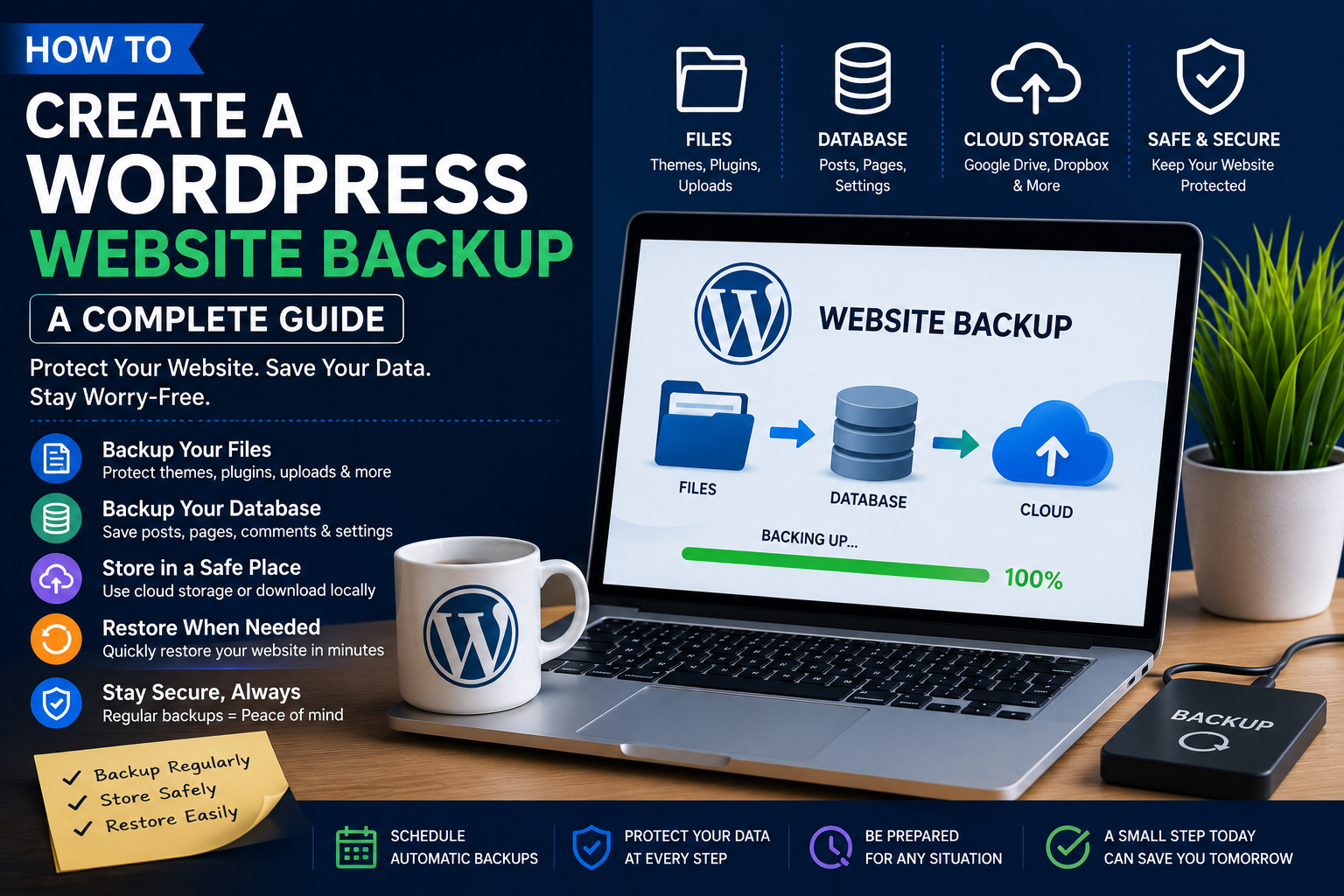
How to Create a WordPress Website Backup: A Complete Guide
In this guide, we’ll explain how to create a complete WordPress backup and how to restore your website when needed.
1. Why Is a WordPress Backup Important?
A backup is a copy of your website’s important files and database.
A backup can help you recover your website if:
- Your website gets hacked
- A plugin causes an error
- A theme update breaks the design
- Important content is accidentally deleted
- Your hosting server has a problem
- You make a configuration mistake
- You want to move your website to another server
Regular backups give you an extra layer of protection and peace of mind.
2. What Should You Back Up?
A complete WordPress backup generally includes two important parts:
Website Files
These include your WordPress installation files, themes, plugins, uploaded images, and other website files.
WordPress Database
The database contains important information such as:
- Blog posts
- Pages
- Comments
- User information
- Website settings
- Plugin data
- Theme settings
For a complete backup, you should save both the website files and the database.
3. Create a Backup Using Your Hosting
Many hosting providers offer backup tools through their hosting control panel.
Log in to your hosting account and look for options such as Backups, Website Backup, or Backup Manager.
From there, you may be able to create or download a backup of your website files and database.
The exact process depends on your hosting provider.
4. Create a Backup Using a WordPress Plugin
Another simple option is to use a WordPress backup plugin.
After installing a trusted backup plugin, you can usually configure:
- What should be backed up
- How frequently backups should run
- Where backups should be stored
- How long backups should be kept
Some solutions can automatically create backups on a schedule, which is useful for websites that are updated frequently.
5. Store Backups in a Safe Location
Do not rely on only one copy of your backup.
If possible, keep backups in a separate location from your website hosting account.
For example, you can maintain copies in secure cloud storage or download important backups to your computer.
Keeping multiple copies reduces the risk of losing both your website and its backup at the same time.
6. Create a Backup Before Major Changes
Always consider creating a fresh backup before making major changes to your website.
For example, create a backup before:
- Updating WordPress
- Updating a theme
- Updating important plugins
- Changing website code
- Installing a major plugin
- Redesigning important pages
- Moving your website to new hosting
If something goes wrong, you can use the backup to return to the previous version.
7. How to Restore a WordPress Backup
If your website has a serious problem, you may need to restore a previous backup.
The restoration process depends on how the backup was created.
Generally, you may need to restore:
- WordPress website files
- WordPress database
- Uploaded media files
- Theme and plugin files
- Website configuration
Some backup tools provide a restore option that can simplify the process.
Before restoring a backup, make sure you understand what data will be replaced.
8. Test Your Backups
Creating a backup is not enough. You should also make sure that your backup can actually be restored.
A backup that cannot be restored is not very useful during an emergency.
For important websites, periodically check your backup files and restoration process.
9. Set Up Automatic Backups
Manual backups can easily be forgotten.
If your website is regularly updated, consider setting up automatic backups.
For example, you could schedule backups daily, weekly, or according to how frequently your website changes.
The right schedule depends on how important your website data is and how often new content is added.
10. Keep Multiple Backup Versions
Instead of keeping only the latest backup, maintain several recent backup versions.
For example, you might keep:
- The latest backup
- A backup from the previous week
- A monthly backup
This can be helpful if you discover a problem several days after it happened and need an older version of your website.
Common Backup Mistakes to Avoid
Avoid these common mistakes:
- Never creating backups
- Keeping backups only on the same server
- Backing up files but not the database
- Never testing the backup
- Keeping only one backup version
- Forgetting to back up before major changes
- Using unreliable backup solutions
Final Thoughts
Creating regular WordPress backups is one of the simplest ways to protect your website.
A good backup strategy should include both your website files and database, store copies in a safe location, and use a schedule that matches how frequently your website changes.
Most importantly, don’t wait until something goes wrong to think about backups. Create your backup system now and keep it updated regularly.
A few minutes spent creating a backup today can save hours of work tomorrow.