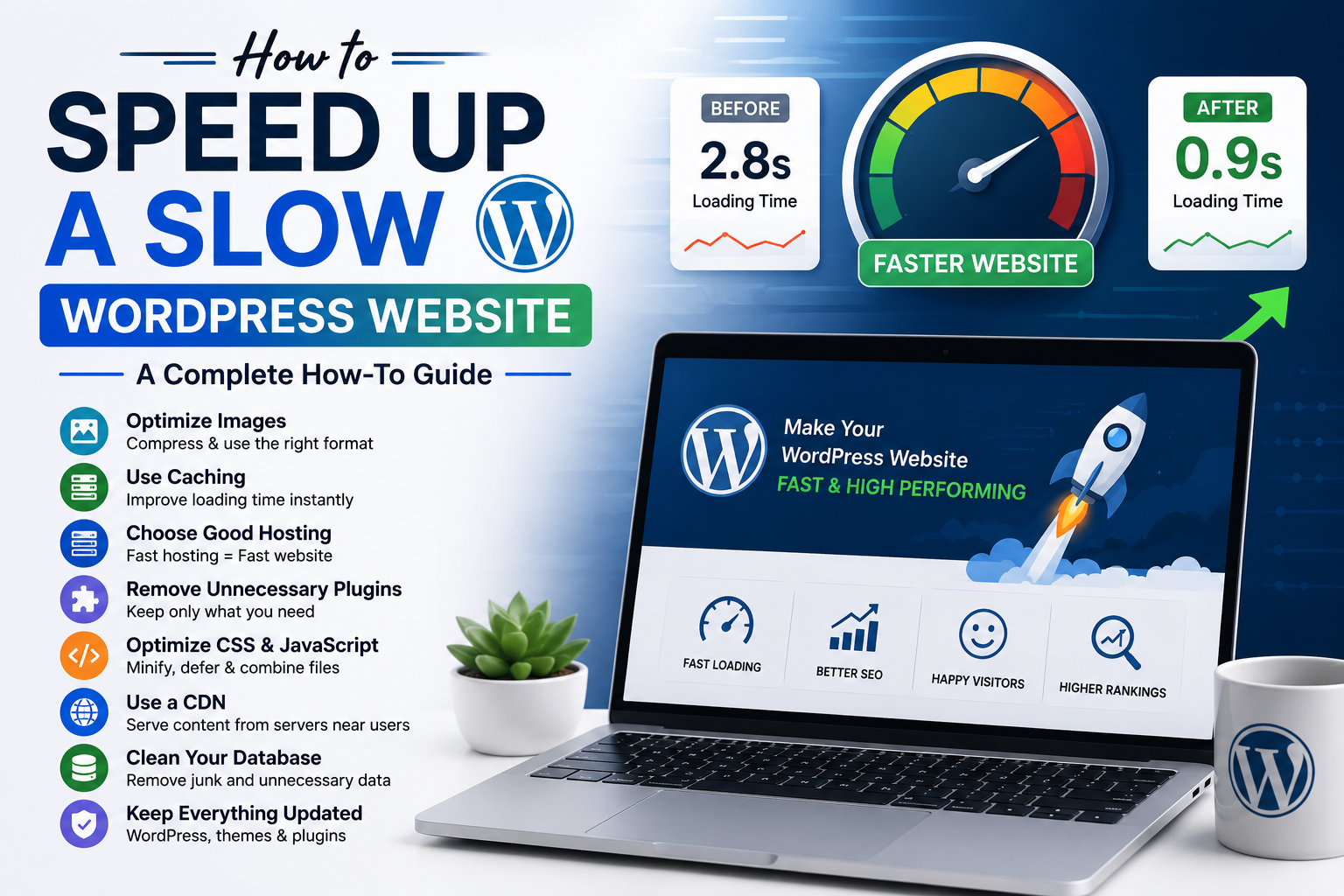
How to Speed Up a Slow WordPress Website: A Complete Guide
1. Test Your Website Speed
Before making any changes, check how fast your website currently loads.
Speed testing tools can help identify problems such as large images, slow server response, unused files, and other performance issues.
Take note of the main problems so you can check your improvements later.
2. Optimize Your Images
Large image files are one of the most common reasons for slow websites.
Before uploading images to WordPress:
- Resize images to the required dimensions
- Compress large image files
- Use modern formats such as WebP when appropriate
- Avoid uploading unnecessarily high-resolution images
Optimized images can significantly reduce page size while maintaining good visual quality.
3. Use a Caching Solution
Caching stores frequently requested website resources so they can be delivered faster to visitors.
A suitable WordPress caching solution can help improve:
- Page loading speed
- Server performance
- Browser caching
- CSS and JavaScript delivery
Caching is especially useful for websites that receive regular visitors.
4. Choose Good Web Hosting
Your hosting server has a major impact on website performance.
If your website is consistently slow even after optimization, your hosting environment may be part of the problem.
When choosing hosting, look for:
- Good server performance
- SSD or NVMe storage
- Reliable uptime
- Suitable server resources
- Good customer support
- Data centers close to your target audience when possible
5. Remove Unnecessary Plugins
Installing too many plugins can increase the amount of code your website needs to load.
Review your installed plugins and remove those that you no longer use.
Instead of installing multiple plugins for small features, consider whether one reliable plugin can handle several related tasks.
Always check compatibility before removing or replacing a plugin.
6. Optimize CSS and JavaScript
CSS and JavaScript files can affect how quickly a page becomes interactive.
Performance tools can help reduce unnecessary code and optimize how these files are loaded.
Common optimization techniques include:
- Minifying CSS and JavaScript
- Removing unused resources
- Deferring non-critical JavaScript
- Loading important resources efficiently
Be careful when changing these settings because aggressive optimization can sometimes affect website layouts or functionality.
7. Use a Content Delivery Network
A Content Delivery Network, or CDN, stores copies of certain website resources on servers distributed across different locations.
When a visitor opens your website, resources can often be delivered from a server closer to them.
This can improve loading times for visitors who are geographically far from your main hosting server.
8. Keep WordPress Updated
Regularly update WordPress, themes, and plugins.
Updates can include:
- Performance improvements
- Security fixes
- Bug fixes
- Compatibility improvements
Before major updates, it is recommended to maintain a recent backup of your website.
9. Clean Up Your WordPress Database
Over time, your WordPress database can collect unnecessary information such as old revisions, unused data, and temporary records.
Regular database maintenance can help keep your website organized.
However, always create a backup before making database-level changes.
10. Use a Lightweight Theme
Your WordPress theme can also affect website speed.
A theme with excessive features, animations, scripts, and design elements may require more resources to load.
Choose a lightweight theme that provides the features your website actually needs.
11. Optimize Your Homepage
Your homepage is often the first page visitors see, so it is important to keep it optimized.
Avoid placing too many:
- Large images
- Videos
- Animations
- Sliders
- External scripts
- Unnecessary widgets
A clean and focused homepage can provide a faster and better user experience.
12. Check Your Website After Optimization
After making performance improvements, test your website again.
Compare the new results with your original speed test.
Also check the website manually on:
- Desktop
- Mobile
- Different browsers
- Different internet connections
Make sure that speed improvements haven’t caused problems with menus, forms, images, animations, or other website features.
Common WordPress Speed Mistakes
Avoid these common mistakes:
- Uploading huge images
- Installing unnecessary plugins
- Using unreliable hosting
- Adding too many animations
- Ignoring mobile performance
- Not using caching
- Keeping outdated plugins
- Adding unnecessary third-party scripts
Final Thoughts
Speeding up a WordPress website does not always require complicated technical changes. Start with the basics: optimize images, use caching, choose reliable hosting, remove unnecessary plugins, and keep your website updated.
After making improvements, test your website again and continue monitoring its performance.
A faster website provides a better experience for visitors and can also support your SEO and business goals.
The key is to optimize your website regularly rather than waiting until it becomes slow.